
oriiion MCP server
Connect oriiion to ChatGPT, Claude and Codex with MCP
Your social media team, inside your AI assistant. Ask ChatGPT or Claude to make your posts, publish them and answer your comments. Typed, or spoken out loud.
https://www.oriiion.ai/mcpWorks with
- Claude
- ChatGPT
- Claude Code
- Codex
- Cursor
Setup
Set up in two minutes
Pick your AI tool and follow the steps. No code required.
- In Claude (web or desktop), open Settings → Connectors.
- Click Add custom connector.
- Name: oriiion — URL: https://www.oriiion.ai/mcp
- Save — Claude opens oriiion so you can sign in and approve access. No API key needed.
- Enable oriiion from the search & tools menu in any chat.
Prefer a key instead of signing in? Add a Request header named x-api-key with your API key under Advanced settings — or use the Claude Code command below.
Everything oriiion does, just by asking
From the first idea to the answered comment. None of it needs you to open oriiion.
Schedule posts from chat
Write a week of posts and put them on your calendar at your best times, on every network or only the ones you name.
Scheduling from ChatGPT and ClaudeDM automation
Set up comment-to-DM on Instagram and Facebook in one sentence.
DM automationComment replies
See what's unanswered on Instagram, LinkedIn and Facebook and get a reply drafted in your voice.
Comment repliesCreate content
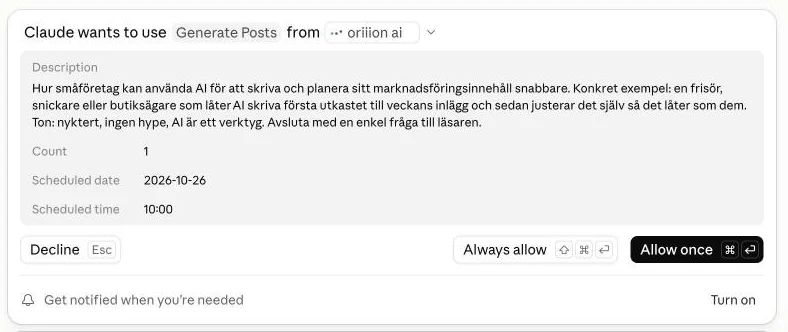
Generate posts from a topic you describe, one of your products, relevant industry news, or an image or video you upload. Or describe nothing at all and let oriiion pick the angle.
Film it on your phone
Ask for a video and oriiion writes the script, cuts it into short takes and sends a link. Your phone becomes the teleprompter and the camera. The finished video appears on that same page with subtitles, hook and end card already burned in, and you can change the wording and remake it.
PDF to swipeable document
Send your assistant a PDF (a guide, a price list, a report) and it becomes a swipeable LinkedIn document post. The same pages become an Instagram carousel at the same time, so one file goes out on two networks.
Analytics & insights
See how you're performing: overall stats, which platform delivers the most value, your best-performing posts, the best times to post, follower growth, and a 'what's working' briefing to make every new post better.
Built-in guardrails
- Every connection is personal. Revoke any connected AI app or API key at any time on the API access page.
- The assistant can only reach your own posts and the social accounts you connected, and nothing else.
- New content is created as drafts; publishing happens when you ask for it.
- Anything that spends money (like boosting a post) always states the budget and asks first.
Frequently asked questions
Which AI tools are supported?
Any MCP-compatible client. We provide guides for Claude (web & desktop), ChatGPT, Claude Code, Codex and Cursor — the same endpoint works in other MCP clients too.
Does the MCP cost extra?
No. It's included in your oriiion subscription. The AI assistant uses the same generation allowance as the dashboard.
Can the AI publish without me knowing?
Generated posts are saved as drafts in your dashboard. Publishing and scheduling only happen when you ask for them in chat, and ad spend always requires an explicit budget confirmation.
How do I disconnect an AI tool?
On the API access page (oriiion.ai/dashboard/api), revoke the app under Connected AI apps — or revoke its API key. The connection stops working immediately; your oriiion account and content are unaffected.
Can I use my voice instead of typing?
Yes. oriiion doesn't do the listening. Your assistant does. Turn on voice mode in Claude or ChatGPT and speak the same requests you would type. It is the same connection underneath, so everything on this page works hands-free.
Can an automation start DMing people without me knowing?
No. An automation is never created until your assistant has shown you the exact DM text, the trigger words and which account it will run on, and you have said yes. A DM broadcast goes further: it will not send unless the assistant states the exact number of recipients it is about to message, and that number matches the real list. You can pause or delete any automation from the chat at any time.
Ready to run your social media from chat?
Create your oriiion account, grab an API key, and your AI assistant becomes your marketing team.